
Sync Office - How to Make a Product Available for a Specific Date Period
This guide explains how to configure a product so that it is only available on a specific date or during a specified holiday period.
Step 1: Navigate to Availability Maps
- Log in to Sync Office.
- Navigate to Sales > Availability Maps.
- Either:
- Edit an existing Availability Map, or
- Create a new Availability Map.
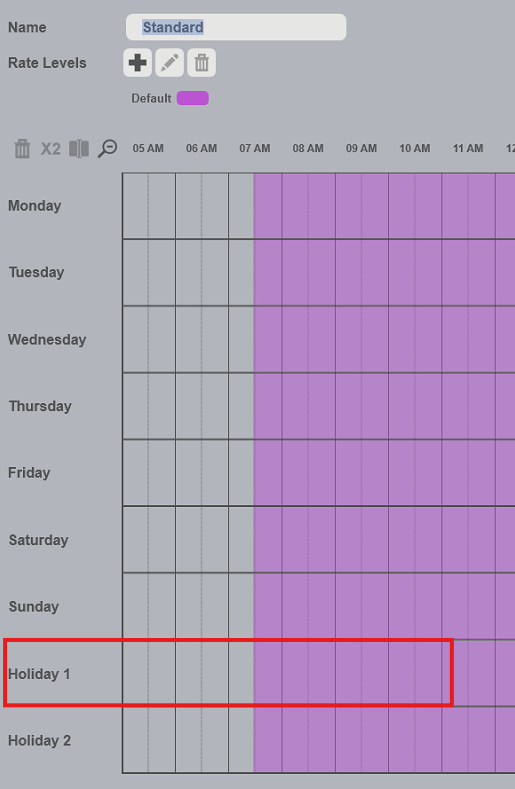
- In the Availability Map, locate the Holiday section.
- Add the required availability to the Holiday section.
- Save the Availability Map.
Important: Make a note of which holiday type you have used, such as Holiday Type 1 or Holiday Type 2. You will need to use the same holiday type when setting up the holiday date.
Step 2: Set Up the Holiday Date
After saving the Availability Map:
- Remain in the Sales section of Sync Office.
- Navigate to Holidays.
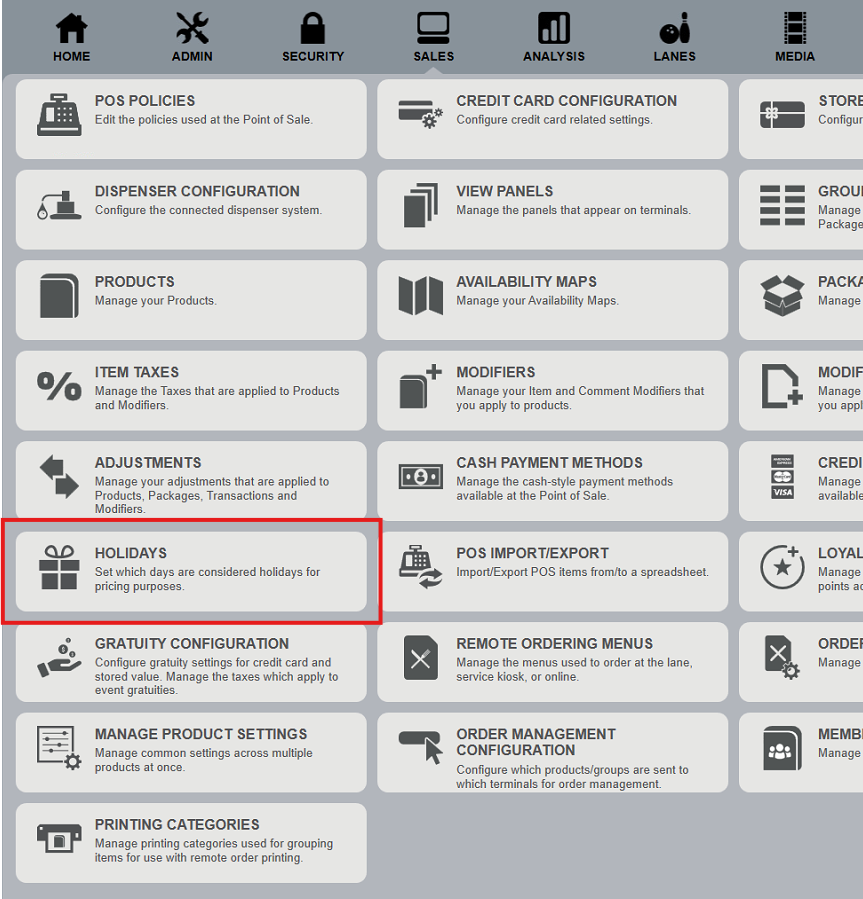
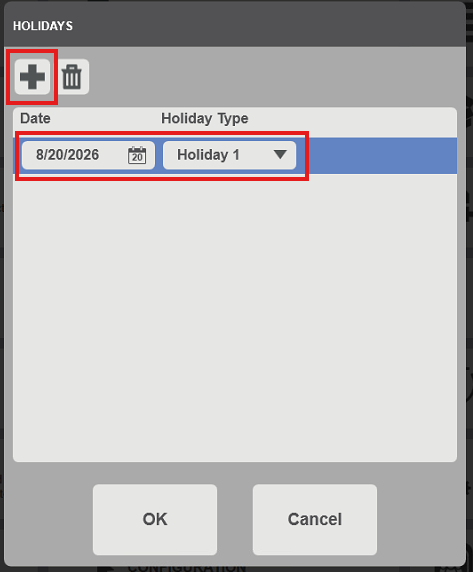
- Add a new holiday for the date you want the product to be available.
- Enter the required date/date period.
- Set the Holiday Type to match the holiday type used in the Availability Map.
- Save the holiday.
Step 3: Confirm the Configuration
Once both steps have been completed:
- The Holiday setting on the Availability Map determines that the product is restricted to a holiday period.
- The Holiday record determines the specific date on which the product is available.
- The Holiday Type must match between the Availability Map and the Holidays section.
Example
If you configure Holiday Type 1 on the Availability Map and then create a Holiday Type 1 entry for 25 December, the product will only be accessible on 25 December.
Key Point
If you use the Holiday line on the Availability Map and then set the corresponding holiday to the required date, the product will only be accessible on that specified date. You can also add multiple dates.
Tip: Time Warp is a useful way to test date-specific availability without having to wait until the actual date.
For more information on how to time warp Sync Desk - time-warp